




Introduction
Chromebooks are popular for their simplicity, speed, and reliability. Sometimes, users may need to rotate their Chromebook screen for presentations, coding, reading, or just for convenience. Knowing how to rotate the screen on a Chromebook can save time and enhance your user experience. This article explains different methods to rotate the screen easily, step by step.
Using Keyboard Shortcuts to Rotate the Screen
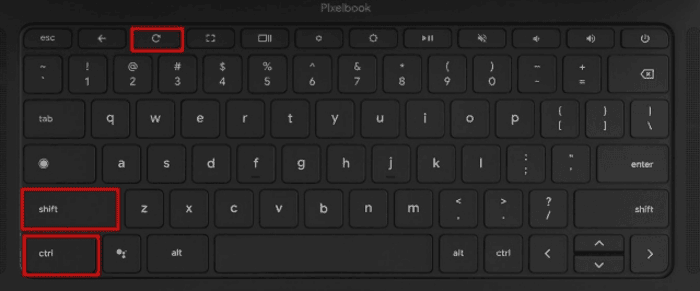
The quickest way to rotate your Chromebook screen is by using keyboard shortcuts. Chromebooks have a dedicated key combination that allows users to rotate the display without accessing settings. To rotate your screen:
-
Press Ctrl + Shift + Refresh simultaneously.
-
Each time you press this combination, the screen will rotate 90 degrees.
-
Keep pressing until your screen is in the desired orientation—landscape or portrait mode.
This method works instantly and is convenient if you need to switch orientations frequently.
Rotating Screen Through Chromebook Settings
If you prefer a settings-based method, you can rotate the screen via the Chromebook settings menu:
-
Click on the time at the bottom-right corner of the screen to open the system tray.
-
Select the Settings gear icon.
-
Scroll down to Device and then click on Displays.
-
In the Display settings, you will see options to adjust Display orientation.
-
Choose your preferred orientation: Landscape, Portrait, Landscape (Flipped), or Portrait (Flipped).
Using settings is helpful if you want a permanent rotation or need to adjust multiple display configurations.
Rotating External Monitors Connected to Chromebook
Many Chromebook users connect external monitors for work or gaming. You can rotate these screens individually:
-
Open Settings > Device > Displays.
-
Select the external monitor from the display diagram.
-
Change the orientation just like you would for the Chromebook’s main screen.
This method ensures that both internal and external displays are correctly aligned for your workflow.
Tips for Screen Rotation on Chromebook
-
If the keyboard shortcut doesn’t work, make sure your Chromebook’s operating system is updated to the latest version.
-
Some apps may not support portrait mode fully, so check if the app layout changes when the screen is rotated.
-
For touchscreen Chromebooks, rotating the display may also rotate the touch input automatically.
Conclusion
Rotating the screen on a Chromebook is simple and can be done using either keyboard shortcuts or display settings. Whether for presentations, reading, coding, or personal preference, screen rotation enhances flexibility and usability. By following the steps outlined above, users can easily switch between landscape and portrait modes on both internal and external displays, ensuring the best viewing experience.
Read more: https://wowhead.co.uk/